Image / UV Editor
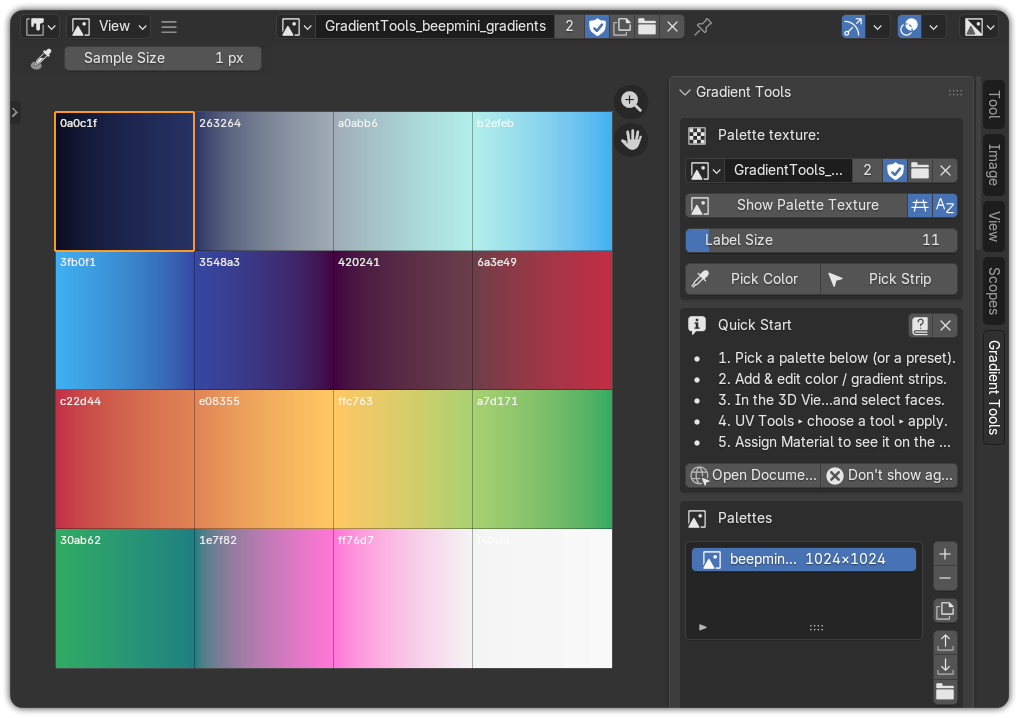
The full Gradient Tools toolset also lives in the Image / UV Editor sidebar (N ▸ Gradient Tools tab). On top of the palette panels, this editor adds a set of tools for picking colors from images and working with painted faces.
Eyedropper — colors from any image
Open a reference photo or mood-board in the Image Editor and use the Eyedropper to grab colors:
- Open the image in the Image / UV Editor.
- Activate the Eyedropper.
- Click any pixel — that exact color is added to your palette as a new strip.
No averaging, no shifts — the pixel you click is the color you get. Click several pixels to pull a whole palette out of a single reference.
Tip
Pair this with a mood-board: drop your reference into the Image Editor and build a palette that matches it pixel-for-pixel in seconds.
Grid overlay
When your palette texture is shown in the editor, Gradient Tools draws a helpful overlay on top of it:
- Cell borders for every strip.
- An accent highlight on the active strip's cell.
- Optional strip-name labels drawn over the texture.
The overlay size is adjustable, so it stays readable at any zoom.
Working with painted faces
These tools connect the texture you see to the geometry in your scene:
| Tool | What it does |
|---|---|
| Pick Strip | Click the palette texture to select that strip instantly. |
| Select Faces by Strip | Select every face that uses the active strip — answers "which faces are this color?" |
| Move Faces to Strip | Retarget a selection's UVs to another strip, preserving their layout — a true palette swap by selection. |
Palette swap by selection
Select the faces currently using strip A, then Move Faces to Strip B. Every one of those faces now shows B's color, keeping its gradient direction and layout — perfect for trying color variants without repainting.
Same panels, everywhere
The Gradient Tools, Strips, Palette Settings and Apply & Export panels are identical to their 3D-Viewport counterparts, so you can design and apply palettes entirely from the Image Editor if you prefer. (The four UV Tools painting modes need a 3D mesh, so they stay in the Viewport.)