Preferences
Open Edit ▸ Preferences ▸ Add-ons, find Gradient Tools, and expand it to set your
defaults. These apply to new (and imported) palettes — existing palettes keep their own
settings.
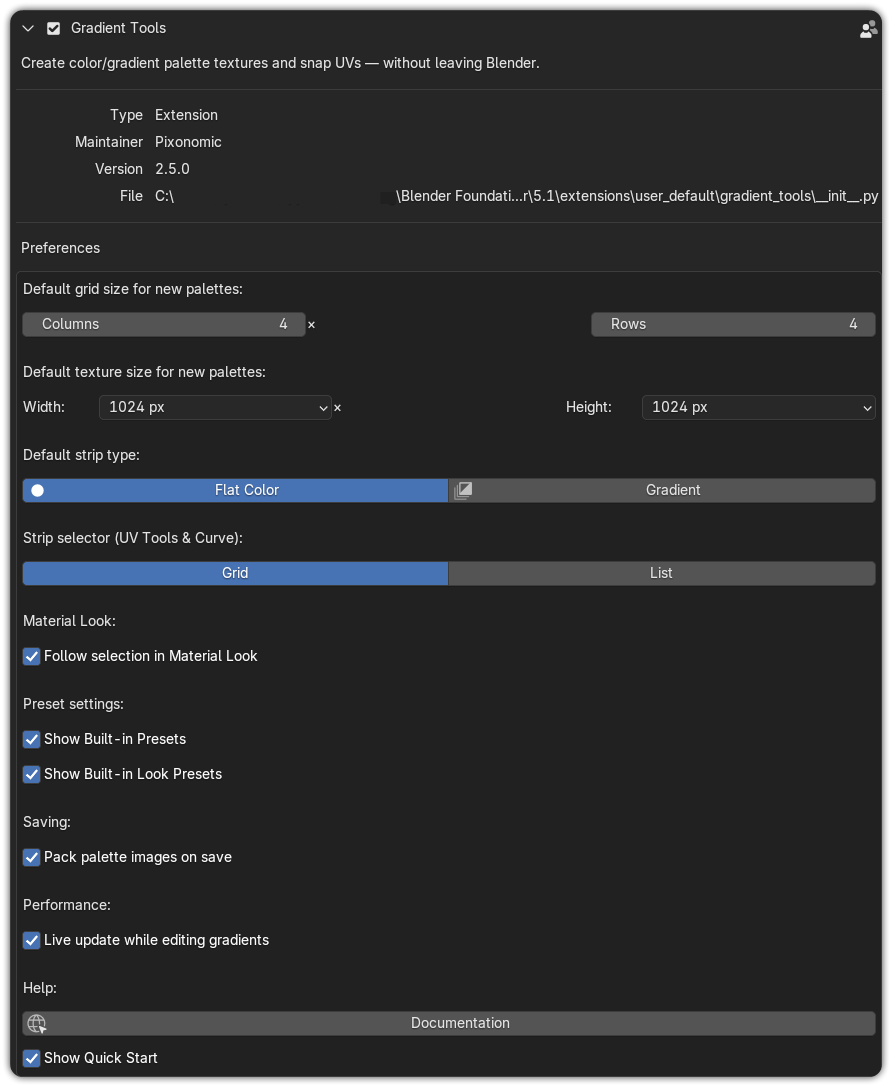
Default grid size for new palettes
| Setting |
Default |
Notes |
| Default Columns |
4 |
Horizontal cells for a new palette (1–64). |
| Default Rows |
4 |
Vertical cells for a new palette (1–64). |
Default texture size for new palettes
| Setting |
Default |
Notes |
| Default Width |
1024 px |
Texture width for new and imported palettes. |
| Default Height |
1024 px |
Texture height for new and imported palettes. |
New palettes, loaded presets, and imports that carry no size of their own all adopt this
default. (Exported .json palettes remember and restore their own saved size.)
Default strip type
| Setting |
Default |
Notes |
| Default Strip Type |
Flat Color |
The type used when you add a new strip (Flat Color or Gradient). |
Strip selector style
| Setting |
Default |
Notes |
| Strip Selector Style |
Grid |
Layout of the read-only strip picker shown in UV Tools and Curve Gradient (Grid or List). Each cell shows the strip's real colour or real gradient as a crisp swatch — pick one to apply. The full editor stays in the Strips panel. |
Material Look
| Setting |
Default |
Notes |
| Follow selection in Material Look |
On |
Auto-selects the look carried by the selected object (or selected faces) when it's a single look, so its parameters are editable immediately in the Material Look panel — no hunting through the material dropdown. |
| Show built-in look presets |
On |
Show the five built-in Material Look presets (Chrome, Clay, Frosted Glass, Cel Toon, Matte Plastic) in the look preset picker. Turn off to see only your own saved looks. |
Two different \"built-in presets\" settings
The Preset settings ▸ Show Built-in Presets setting controls the built-in palette
presets (Flat Colors, Grayscale, Gradients). Show built-in look presets controls the built-in Material Look
presets. They are independent — toggling one has no effect on the other.
Preset settings
| Setting |
Default |
Notes |
| Show Built-in Presets |
On |
Show the system palette presets (Flat Colors, Grayscale, Gradients) in the picker. Turn off to see only your own saved palettes. (Distinct from Show built-in look presets above, which controls Material Look presets.) |
| Setting |
Default |
Notes |
| Live update while editing gradients |
On |
Refresh the palette texture live while you tweak a gradient. Turn it off to update manually with Update Texture — useful on heavy scenes where continuous refresh feels slow. |
Help
| Setting |
Notes |
| Documentation |
Opens the online documentation in your browser. |
| Show Quick Start |
Show the Quick Start helper block at the top of the Gradient Tools panel. Turn it off here, or dismiss it in-panel with Don't show again (which also points you back to this preference). |
Tip
Set your Default Width/Height once to the resolution you usually work at, so every new
palette and import starts at the right size without fiddling.