Radial

Best for: circular highlights or vignettes from a center point.
Radial lays a gradient that radiates outward from a point. Drag from a center and a live circular preview grows with your cursor — perfect for eyes, lights, decals, vignettes, or any "glow from a point" effect. The preview renders every intermediate color stop of the gradient, so the on-screen rings match the final multi-stop result.
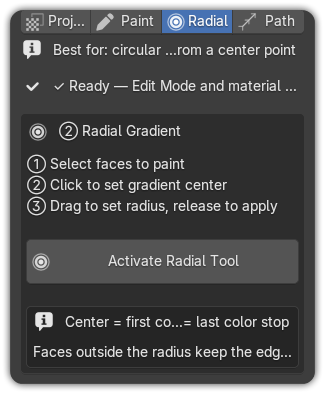
How to use it
- Edit Mode (Tab) → select the faces to paint.
- UV Tools ▸ Radial tab → pick a Target strip (use a Gradient strip for the radial fade).
- Click Activate Radial Tool.
- Click to set the gradient center.
- Drag outward to set the radius, then release to apply.
How the colors map
- The gradient's first color stop sits at the center.
- The gradient's last color stop sits at the edge (the radius you dragged to).
- Faces outside the radius keep the edge color — so the surrounding area stays clean.
Handy keys
| Key | Action |
|---|---|
| F | Invert the gradient (swap center ⇄ edge colors) |
| Esc / right-click | Cancel |
Vignettes & glows
Build a gradient that fades from a bright center to a darker rim, drop the center where you want the hotspot, and drag out to taste. Press F to flip it into a dark-center vignette without rebuilding the strip.