Grid, resolution & layout
This page covers the shape of a palette (its grid), how strips are arranged, and the texture settings that control quality and color handling.
Grid size
In the Strips panel, under Layout / Grid, set the number of Columns and Rows (1–64 each). The grid defines how many cells — and therefore how many strips — a palette can hold.
- Auto-Fit Grid — pick the tightest grid that fits your current strips.
- A live
N/M cells usedread-out tells you how full the palette is.
Shrinking the grid
If you try to make the grid too small to hold the strips you already have, Gradient Tools restores the previous size and warns you. Remove strips first, or use Compact Slots (below).
The Mini Grid Map
The Mini Grid Map is a visual, drag-and-drop view of your whole palette:
- Each filled cell shows the strip's color and name; empty cells show a dash (—).
- Click a strip cell to "pick it up" (it's now held).
- Click a target cell to drop it there — the strip moves to that slot, and every UV assignment in your scene follows the move automatically. Click the held cell again to cancel.
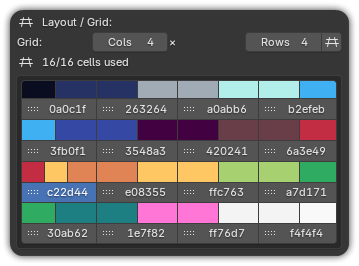
Compact Slots appears when there are gaps; it re-packs strips into the first free slots so there are no holes.
Texture resolution
In the Palette Settings panel, set the texture Width and Height. Supported sizes are powers of two from 32 px to 4096 px:
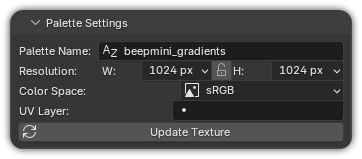
- Lock Aspect keeps width = height (a square texture).
- Higher resolutions give smoother gradients but larger images; for flat-only palettes even small sizes look perfect.
Default size
New and imported palettes adopt the default texture size from your
Preferences. Exported .json palettes remember their own
saved size and restore it on re-import.
Color space
Each palette has a Color Space (also in Palette Settings):
| Mode | Use it for |
|---|---|
| Non-Color (Linear) | In-Blender shading. Pixel values are stored linear — no shader conversion. Recommended for Blender-only work. |
| sRGB | PNG export and external engines (Unity, Godot, …). Values are gamma-encoded before storing, so the colors look correct outside Blender. |
If your colors look washed-out or too dark in a game engine, you almost certainly need sRGB; if they look off inside Blender, you probably want Non-Color.
UV layer
By default, painting writes to the mesh's active UV layer (and creates one called
UVMap if the mesh has none). To target a specific layer, type its name into the UV
Layer field in Palette Settings — handy when a mesh carries several UV maps.
Updating the texture
The texture regenerates automatically whenever you change a strip, resize the grid or edit a gradient. If you ever need to force a rebuild, use Update Texture in Palette Settings.