Strips & the gradient editor
Everything to do with building a palette lives in the Strips panel.
Adding strips
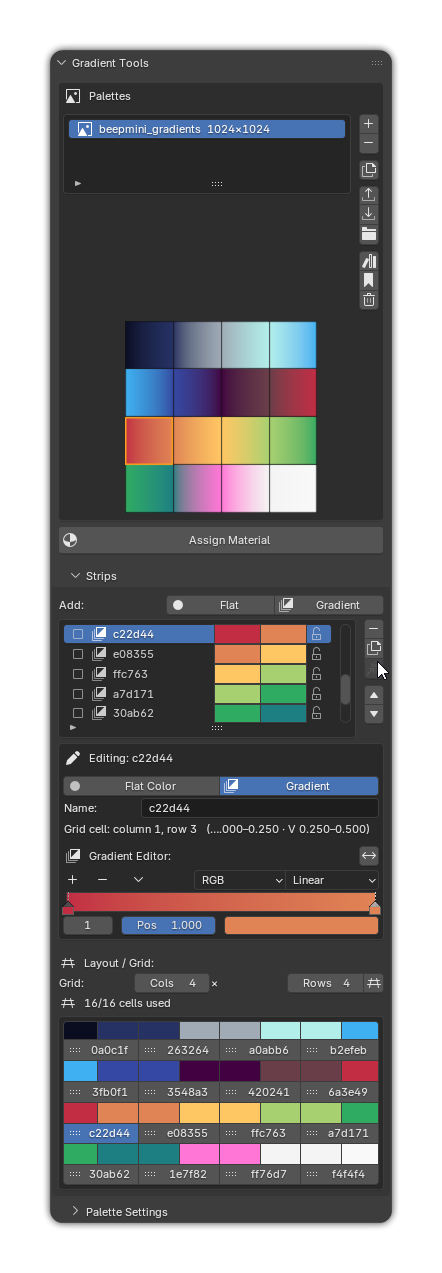
At the top of the Strips panel:
- Add ▸ Flat — adds a new Flat Color strip.
- Add ▸ Gradient — adds a new Gradient strip (a Color Ramp).
New strips drop into the next free cell of the grid.
Palette full?
If every cell is taken, adding a strip reports "Palette is full". Increase the grid size first — see Grid, resolution & layout.
The strip list
Below the add buttons is the list of strips. Each row shows the strip's name, a type icon, a color preview and a lock toggle. The side column has buttons to:
| Button | Action |
|---|---|
| Remove | Delete the active strip. |
| Duplicate | Copy the active strip into the next free cell. |
| Copy to palette | Copy the active strip into another palette — great for a shared color library. |
| / Move | Re-order the strip (its grid cell, and every painted UV, follows). |
When one or more strips are ticked (selected), a Delete Selected button appears for batch deletion.
Lock a strip
Toggle the lock to prevent accidental edits, moves or deletion of a finished strip.
Editing the active strip
Select a strip to open its editor (Editing: name):
- Flat Color / Gradient — switch the strip type at any time.
- Name — rename the strip (the name shows in the grid map and labels).
- Grid cell — read-out of the strip's column/row and its exact UV range, handy when you want to build UVs by hand.
Flat strips
A Flat strip has a single Color swatch (RGBA). Click it to open Blender's color picker. The model updates live as you change it.
Gradient strips — the Gradient Editor
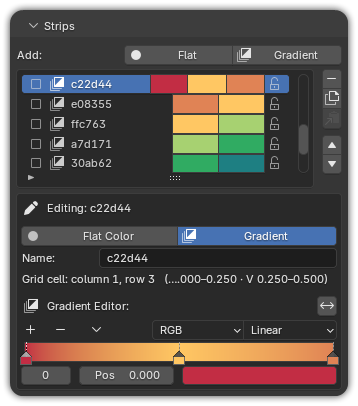
A Gradient strip embeds Blender's native Color Ramp editor (ColorRamp). You get the
full, familiar control set:
- Add / remove / drag stops along the bar.
- Color mode —
RGB, orHSV/HSLwith a hue path (Near, Far, Clockwise, Counter-Clockwise) for smooth rainbow-style blends. - Interpolation —
Linear,Ease,B-Spline,CardinalorConstant(hard steps). - Position field for precise stop placement.
Because it's a real Color Ramp, gradients are fully non-destructive: change a stop any time and every face using that strip updates instantly.
Flip, duplicate & reuse
- Flip reverses a gradient strip's stops (same as pressing F while painting, but applied permanently to the strip).
- Duplicate is perfect for making tonal variations — duplicate a strip, then nudge its colors.
- Copy to palette lets you build a master "library" palette and pull colors into per-asset palettes.
Thumbnails are accurate
Every color swatch, ramp preview and grid thumbnail is drawn gamma-correctly, so the colors you see in the panel match exactly what lands on your model.