Materials & UV textures
The default output of a palette is a UV texture on a material. Materials are now stored per object in native Blender material slots — each object owns its own material, rather than one material being shared per palette. This page covers assigning that material and getting the texture out of Blender.
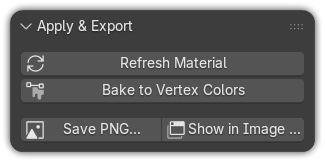
All of these actions live in the Apply & Export panel (and the prominent Assign Material button at the top of the Gradient Tools panel).
Assign the material
Select your object and click Assign Material (at the top of the Gradient Tools panel, or the primary button in Apply & Export). It builds a per-object material from the palette texture — each object owns its own material, so tuning one never disturbs another.
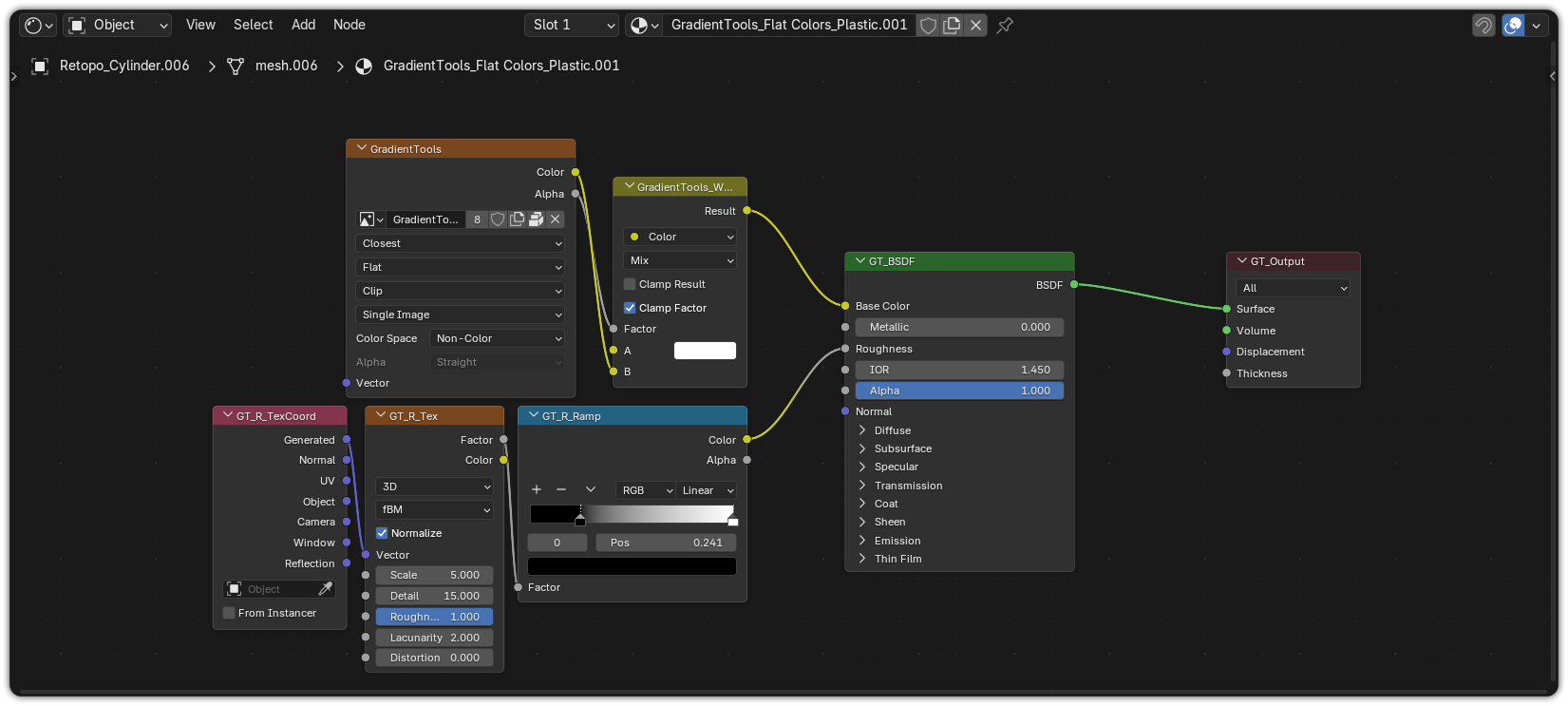
The material wires the palette texture into the Base Color of a Principled BSDF, so it renders out of the box in both Cycles and EEVEE. Once the material exists, you choose how the surface is shaded — Toon, Flat, Plastic, Glossy, Metal or Glass — in the Material Look panel. See Material looks.
The primary button is adaptive: it reads the object's state and becomes Set Up Object, Refresh Material or Switch to '{palette}' — see Switch an object's palette below.
White until painted
A freshly assigned object stays blank (white) — color appears only on the faces you actually paint. You always start from a clean surface instead of a pre-filled one.
Several objects, one palette
Materials are per object by default. To make several objects share one palette — so editing it re-colors them all at once — set one up, then select the rest and use Link Looks (Shared). To give other objects the same look while each keeps its own colours, use Copy Look to Selected. See Look presets & sharing looks.
Textures travel with your file
Palette textures are automatically packed into the .blend when you save, so the file
stays self-contained — move it or share it and the images come along.
Switch an object's palette
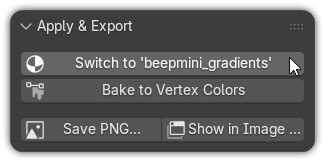
The Apply & Export primary button is adaptive — it reads the active object's state and relabels itself:
| Button reads | When | What it does |
|---|---|---|
| Set Up Object | The object has no Gradient Tools material yet | Builds a fresh per-object material from the palette. |
| Refresh Material | The object already uses the same palette | Rebuilds the material in place, keeping everything current. |
| Switch to '{palette}' | The active palette is different from the one on the object | Re-points the object's material to the new palette. |
Switching keeps the object's tuned Material Look — you only change which palette drives the colour, not the shading. If the two palettes' grids match, your painting is preserved; if the grids differ, you're warned first.
No delete-and-reassign
Use Switch to '{palette}' to try a different palette on an already-set-up object in one click, instead of removing and re-creating its material.
The UV layer
Painting writes into the mesh's active UV layer by default (and creates a UVMap if the
mesh has none). To target a specific layer, set its name in Palette Settings ▸ UV Layer —
see Grid, resolution & layout.
Save the texture as PNG
Save PNG exports the generated palette texture as an image file you can use outside Blender (game engines, image editors, documentation…).
Exporting for game engines?
Set the palette's Color Space to sRGB before saving, so the colors look correct in Unity, Godot, Unreal, etc. See Color space.
Show in the Image Editor
Show in Image Editor opens the generated texture in Blender's Image / UV Editor in one click — handy for inspecting cells, using the grid overlay and eyedropper, or checking UV layout.
Other outputs
A palette doesn't have to live on a UV texture. The same colors can become:
- Vertex colors — texture-free, game-ready.
- Curve gradients — along hair, ropes and cables.
And the same palette colour can be shaded any way you like:
- Material looks — render each object as Toon, Flat, Plastic, Glossy, Metal or Glass while keeping the exact palette colour (the Flat look keeps the old lighting-independent, shadeless colour).