Look presets & sharing looks
Tune a Material Look once — its metallic, roughness, highlight, coat, IOR, transmission, emission-floor, Toon band count and procedural roughness/bump channels — then reuse it everywhere. Look presets let you save a finished look and drop it onto any object in any project, and copy/link/eyedropper let you spread a look across the objects already in your scene.
Looks change shading, not colour
Everything on this page moves a look — the way light plays on a surface — between objects. Each object always keeps its own palette colours. See Material looks for the six looks and their parameters.
Save, apply, import & export
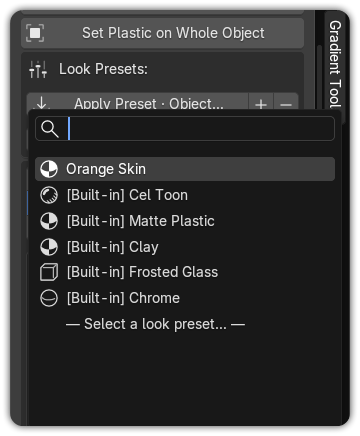
Look presets work exactly like palette presets: a look is
a small .json file you can save, search, apply, and share.
- Save the current look as a named preset.
- Apply from a searchable popup — type to filter, even with a large library.
- Import a
.jsonlook someone sent you. - Export any look to
.jsonto back it up or share it.
Presets are stored in a user library folder on disk, so they persist across projects. They round-trip at full fidelity: every tunable parameter and the procedural roughness/bump node setup (the noise texture and its live colour-ramp control) are preserved.
JSON is the round-trip format
Just like palettes, looks export to Gradient Tools' own .json so nothing is
lost. See File formats for details.
Built-in presets
Five built-in look presets ship with the add-on as starting points:
| Preset | Based on |
|---|---|
| Chrome | A polished, reflective Metal look. |
| Clay | A soft, matte, low-reflection look. |
| Frosted Glass | A diffuse, translucent Glass look. |
| Cel Toon | A banded, cel-shaded Toon look. |
| Matte Plastic | A low-gloss Plastic look. |
Tip
Prefer to see only your own saved looks? Turn off Show built-in look presets in Preferences.
Apply scope
When you apply a preset, choose how far it reaches — the same scopes used when you apply a look:
- Whole object — the entire object.
- Painted element — just the faces painted with the active strip.
- Selected faces — the current face selection in Edit Mode.
- All selected objects — apply the preset to every selected object at once.
Applying a preset keeps each object's own palette colours; it only changes shading.
Copy, Link & Eyedropper across objects
To move a look between objects already in your scene — without going through a preset file — use these tools in the Material Look panel:
- Copy Look to Selected — push the active object's look onto the other selected objects, while each keeps its own colours. It can optionally set up objects that aren't Gradient Tools objects yet.
- Link Looks (Shared) — make the selected objects share one material: edit the look on any of them and they all update together.
- Eyedropper — click any object in the viewport to adopt its look at full fidelity.
Copy vs. Link
Use Copy Look to Selected when each object should keep an independent look you can tweak separately later. Use Link Looks (Shared) when you want one look to drive several objects at once.
See Material looks for the full look system, parameters and per-engine behaviour.